 |
 |  |
Tableau Studio: Build Viz Extensions with AI Agent

Tableau Blog> Tableau Studio: Build Viz Extensions with AI Agent
Tableau Studio: Build Embedded Viz Extensions with Tableau Agent
Tableau extensions have always been one of the platform’s most powerful capabilities—but hosting them has traditionally required an external server, adding friction to deployment and maintenance. Tableau Studio changes that with a new breed of extension: Embedded Viz Extensions. These extensions travel inside the .twbx file and are served directly by Tableau Desktop or Tableau Cloud, so no hosting infrastructure is needed. Pair that with a Tableau Agent powered by Claude, and you have an environment where anyone can describe a custom visualization in plain language and walk away with a production-ready extension.
This article focuses exclusively on how to use Tableau Agent inside Tableau Studio to build Embedded Viz Extensions—from the very first prompt to refining the result across multiple iterations and packaging your hard-won patterns into a reusable skill.
What Are Embedded Viz Extensions—and Why Do They Matter?
A Viz Extension in Tableau is a custom, code-driven visualization that sits inside a sheet just like a native mark type—a 3D globe, a network diagram, a custom bullet chart, and so on. The “embedded” part is the key differentiator in Tableau Studio: The extension’s files (HTML, CSS, JavaScript) are packaged and stored inside the workbook file itself. The benefits this unlocks are significant:
- Zero hosting overhead: No server, no CDN, no CORS configuration. Publish the workbook and the extension comes along for the ride—Tableau Cloud serves the files automatically.
- True portability: Share a .twbx with a colleague or a client and the custom visualization works immediately, regardless of their network access or environment.
- Version coherence: Because the extension files live in the workbook, the visualization you authored is always the visualization someone else sees—no risk of a remote file being updated or taken offline unexpectedly.
- Faster iteration: Tableau Agent can write, test, and re-register an updated extension in seconds, all within the same authoring session.
- AI-native workflow: Tableau Agent in Tableau Studio is built on Claude, which means you can direct the entire development process with natural language—from the initial design brief to debugging subtle rendering issues.
The combination of self-contained packaging and an AI agent that can generate and iterate on code in real time represents a genuine leap in what a Tableau analyst or developer can produce without leaving the authoring environment.
The Skills System: Your Agent’s Superpower
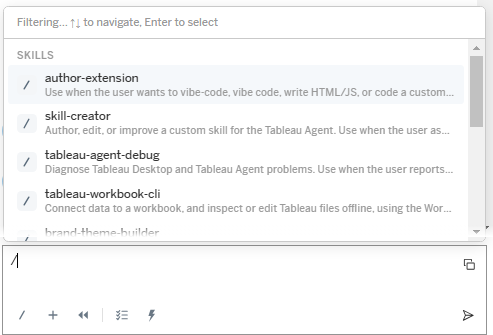
Before diving into the step-by-step workflow, it helps to understand how Tableau Agent organizes its capabilities. Skills are reusable instruction sets—Markdown files stored in ~/Documents/My Tableau Repository/Tableau Agent/skills/—that teach the agent how to perform a specific category of task. You invoke a skill by typing its name after a / in the chat input. Tableau Studio ships with several built-in skills worth knowing:
- /author-extension: The primary skill for building Viz Extensions. It provides the agent with templates, patterns, and best practices for creating embedded extensions from scratch.
- /skill-creator: Lets you author a brand-new skill—or refine an existing one—through a conversation with the agent. This is how you create your own custom skills, such as the viz-extension-toolkit described later in this article.
- /tableau-agent-debug: Helps diagnose problems when the workbook or an extension is behaving unexpectedly.
- /tableau-workbook-cli: Connects data, inspects workbook fields, and manages the workbook offline from within the agent session.
The real power emerges when you combine skills in a single prompt: The agent loads both instruction sets simultaneously, giving it richer context for the task at hand.
How to Build Your First Embedded Viz Extension
The process follows a clear sequence: Prompt → Iterate → Package. Here is how each phase plays out in practice.
1. Craft a powerful first prompt
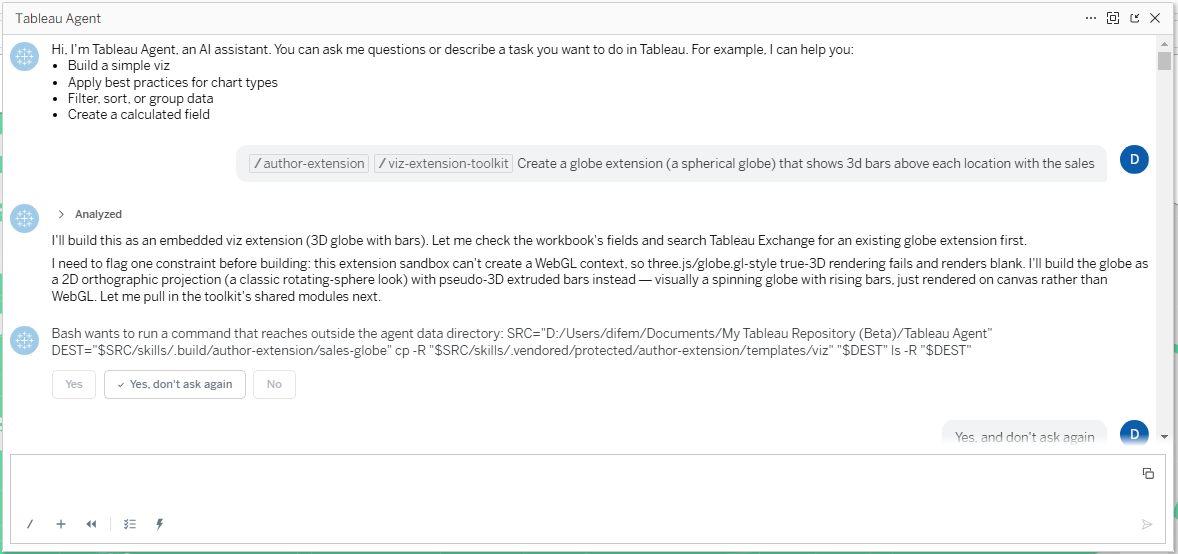
Open the Tableau Agent panel in Tableau Studio and start with the /author-extension skill. The more specific your initial prompt, the less back-and-forth you will need. A strong first prompt should ask for a customizable extension with a config modal and explicitly request the features that save the most rework later:
- Tableau-style tooltips: Matching the look and feel of native Tableau tooltips.
- Selection and fade: Clicking a mark selects it and fades the others, consistent with native Tableau behavior.
- Marquee (drag-to-select) with fade: Drawing a box selects multiple marks and fades unselected ones.
- Config modal button: A button to open a configuration panel, with options that persist between sessions (saved state).
- Native “Format Extension” button wired to the config modal: So users can also open the configuration from the standard Tableau UI.
- Coloring options: Single color, by category, sequential, and divergent palettes—plus controls for background, text, and accent colors.
- Number format options: Automatic, thousands, millions, number of decimals, and percentage.
- Fit Width / Fit Height: For both Cartesian charts and table-style layouts.
- Custom encoding: Resolve custom-encoding fields via
getVisualSpecificationAsync, not column order—this is the robust approach.
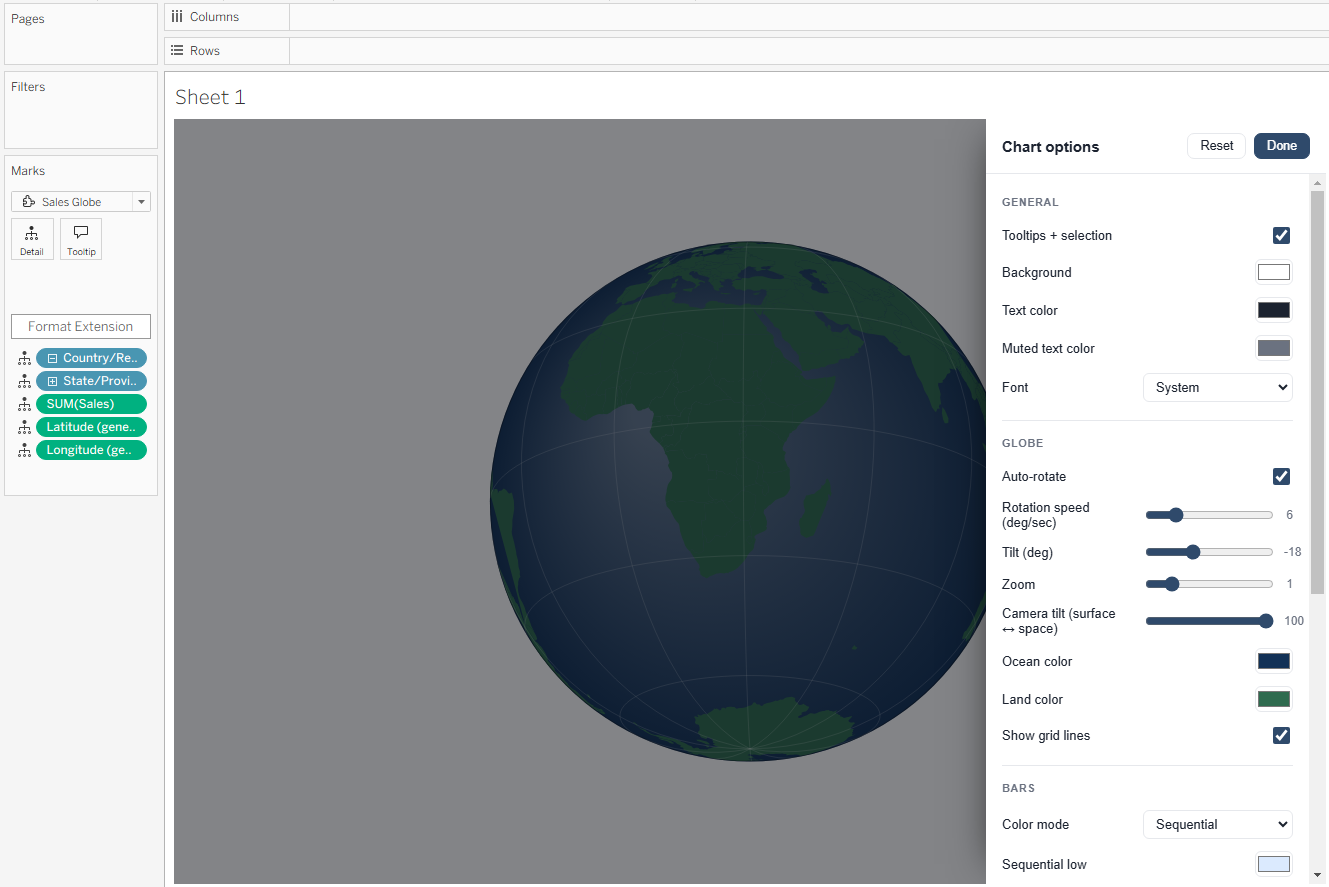
The image below shows what a mature config modal looks like after several iterations with Tableau Agent—covering general appearance, globe-specific controls (rotation, tilt, zoom, camera perspective, land and ocean colors), and bar styling options:
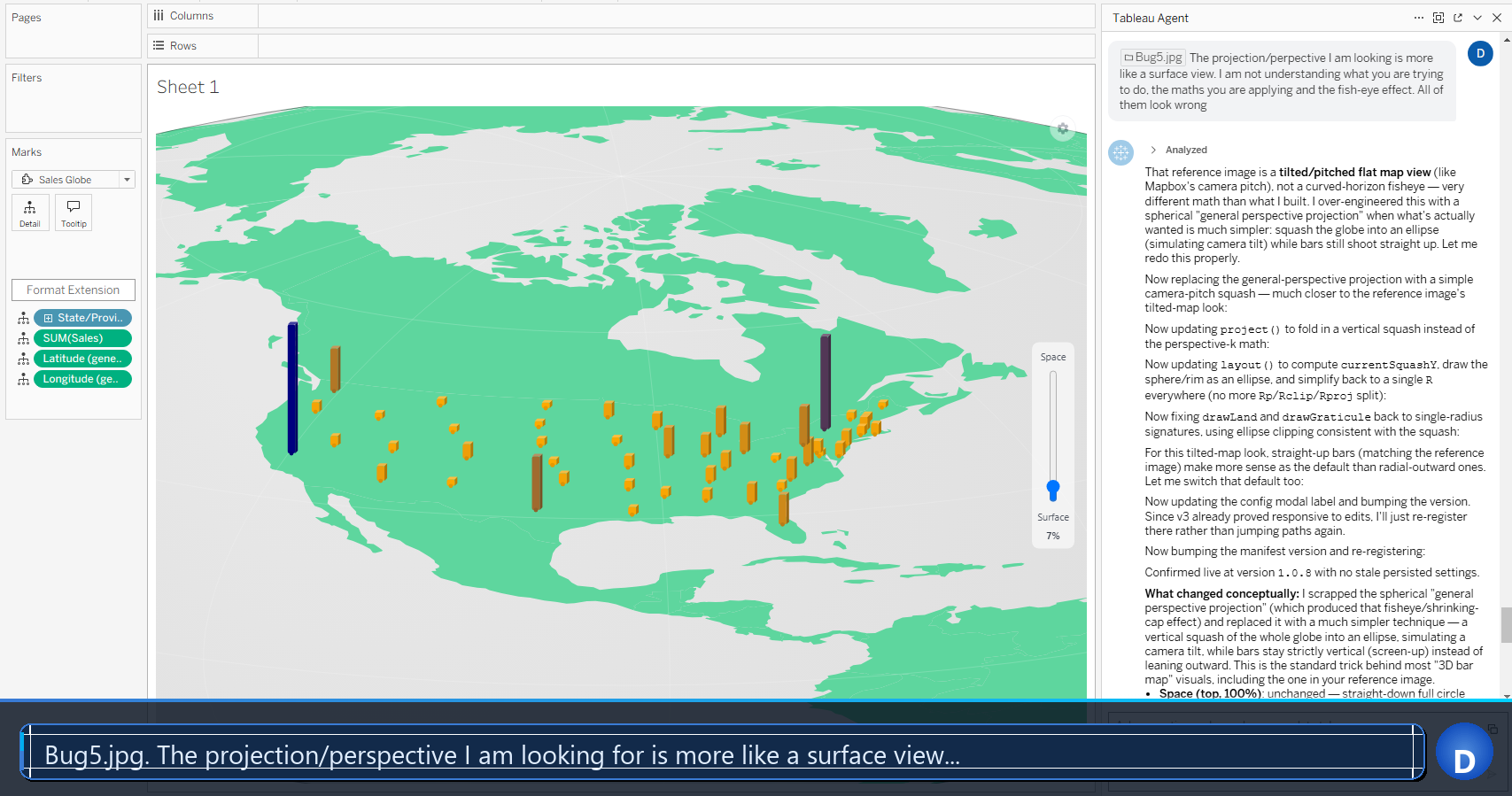
If you already have a reference image of the visualization you want to build, attach it from the start. It dramatically reduces the number of iterations needed to reach the right visual output.
2. Iterate—and be patient
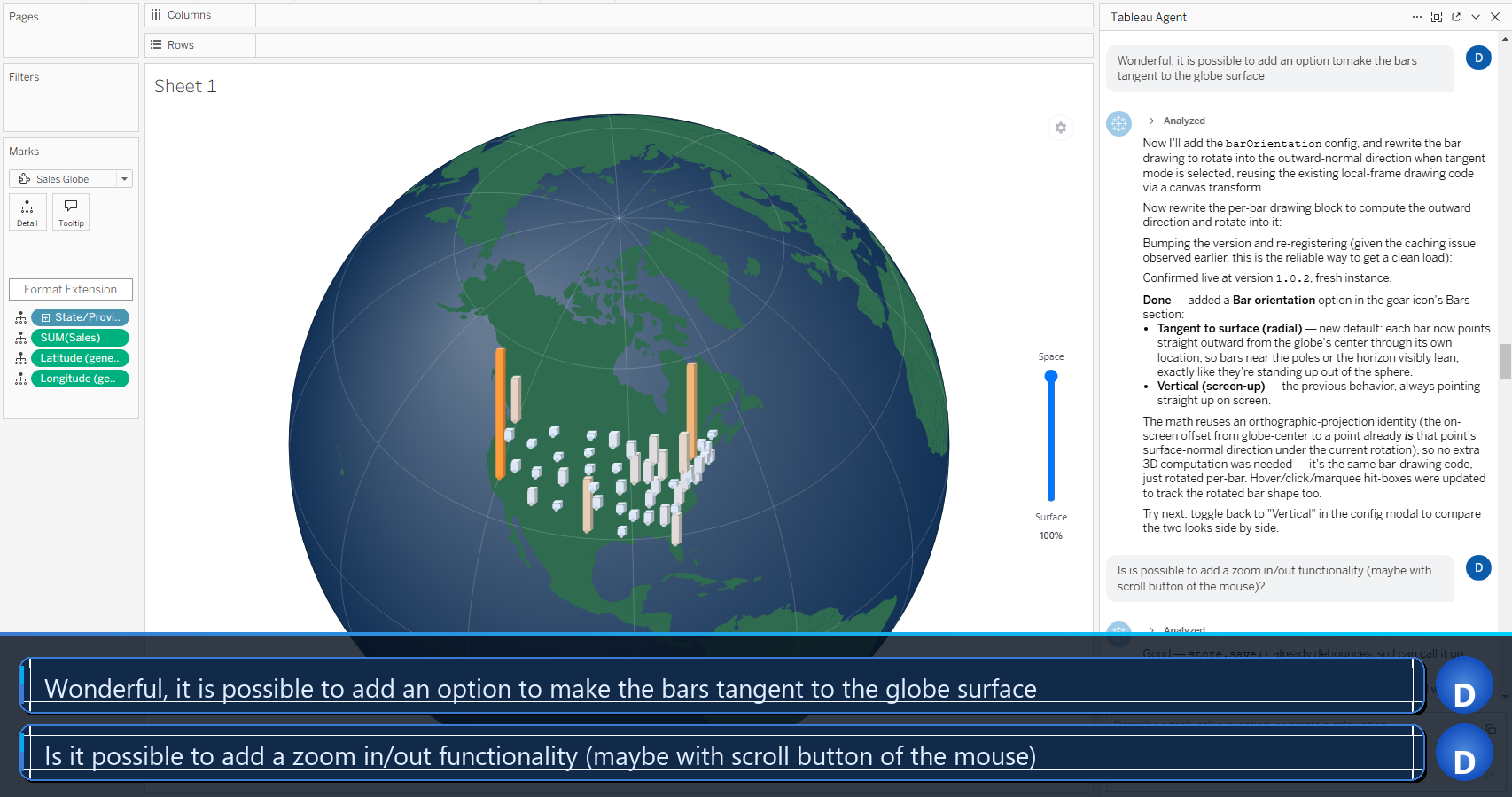
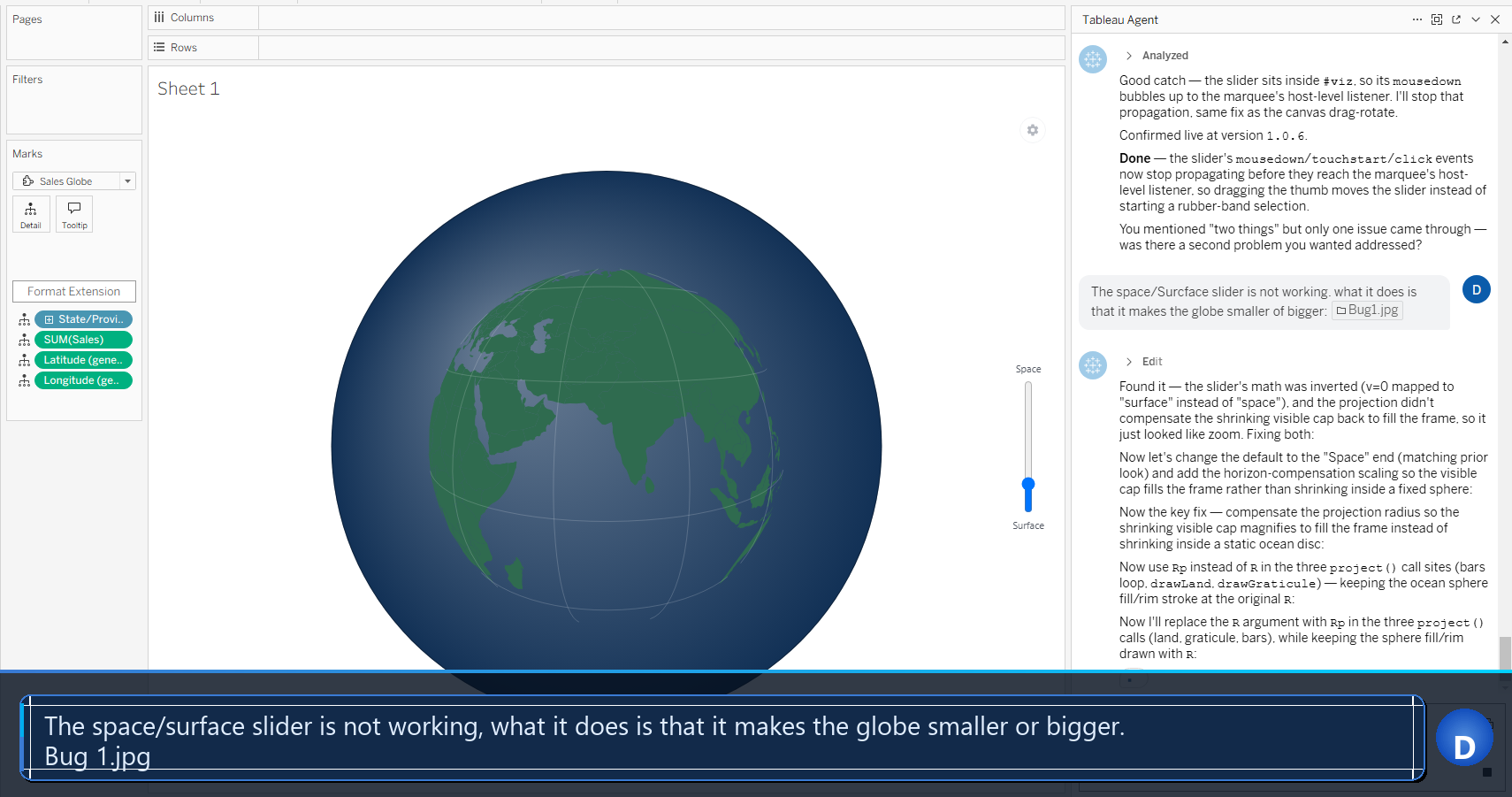
Building an extension is rarely a one-shot process. Expect several prompts to converge on the result you want, and keep in mind that each response may take a minute or two to generate—Tableau Agent is writing, registering, and loading the extension in real time.
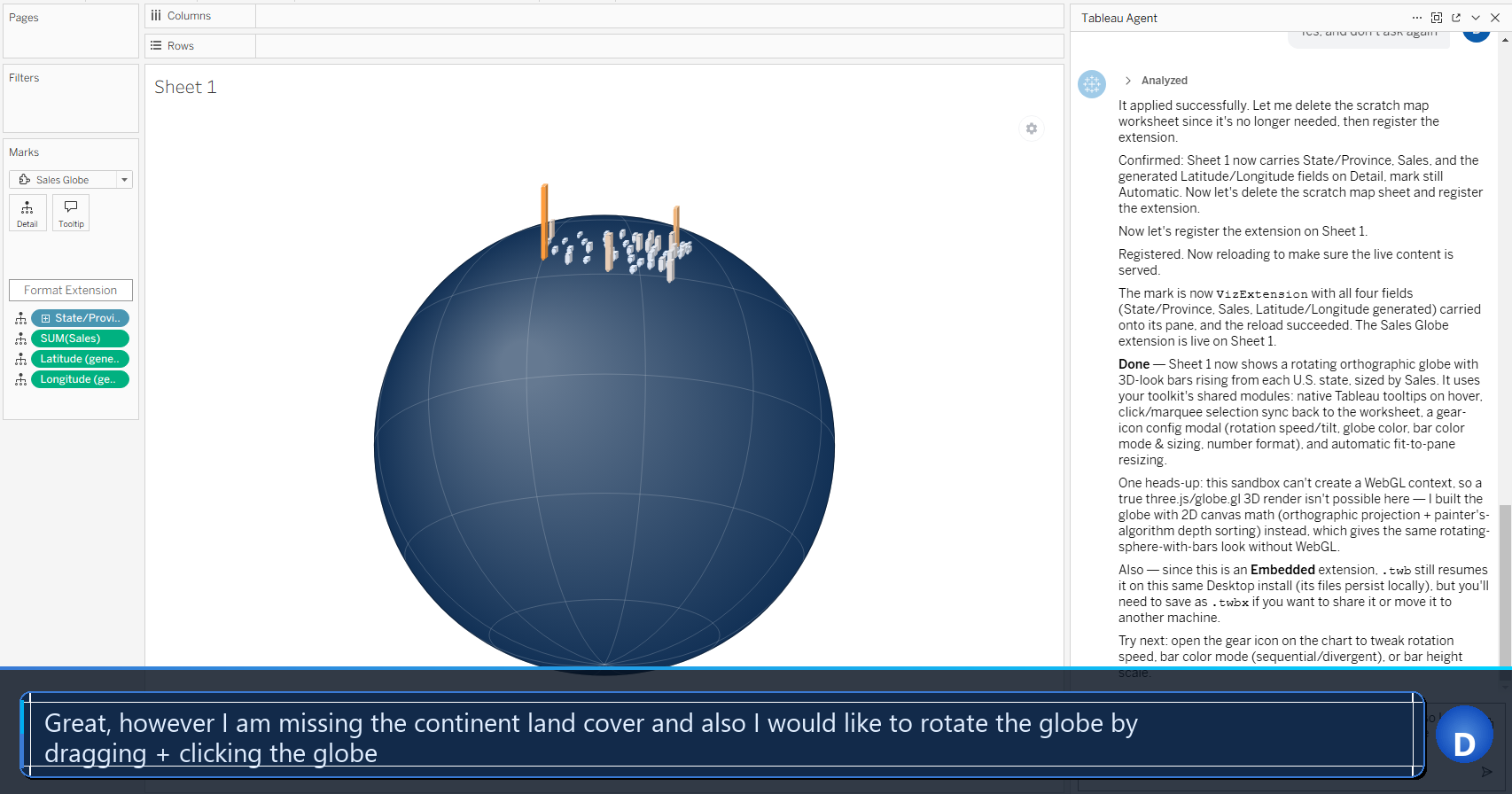
One important constraint to know: Tableau Agent cannot currently capture a screenshot of what your extension is rendering. If something looks wrong on the canvas, the best approach is to take a screenshot yourself, save it as a file, and attach it to the next agent message. This gives the agent the visual feedback it needs to diagnose and fix the issue.
Before You Save: Clean Up Unused Extension Registrations
Each time Tableau Agent registers a new version of your extension during iteration, it may add a new entry to the workbook’s extension registry. Before saving or publishing, it is good practice to remove these stale registrations so the workbook stays clean and compact.
To do this, go to Analysis → Manage Workbook Extensions in the Tableau Desktop menu bar.
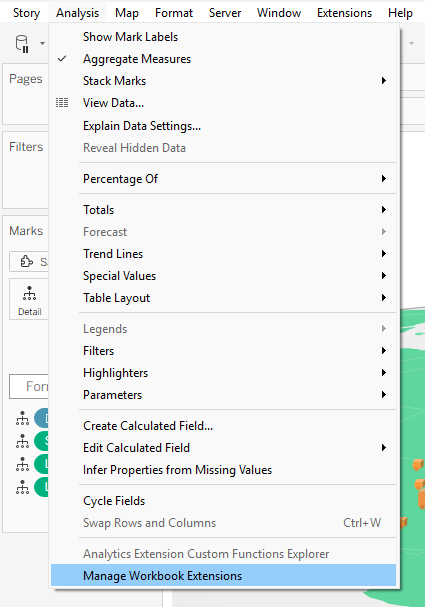
In the dialog that opens, you will see a list of every extension registered in the workbook—including any duplicates created during iteration. Select the ones that are no longer in use (they will typically show None in the Worksheets, Dashboards, and Stories columns) and click Delete. Keep only the active, final version of your extension.
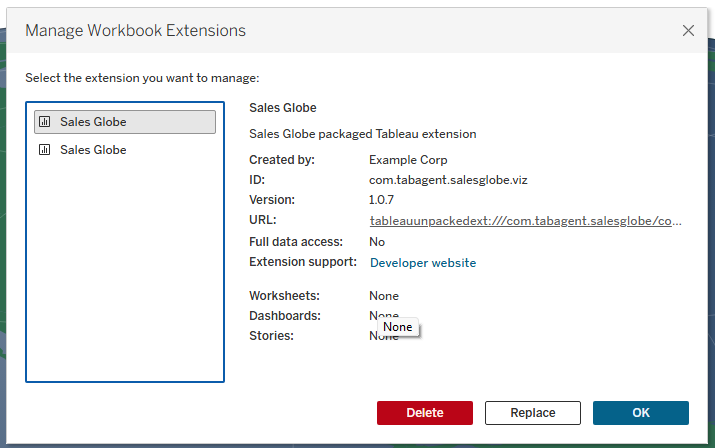
This step keeps your workbook portable, reduces file size, and avoids unnecessary security warnings when others open the file. It is covered in more detail in our article on Managing Workbook Extensions in Tableau.
Package Your Knowledge: Create a viz-extension-toolkit Skill
After finishing your first extension, the patterns, helper modules, and lessons you accumulated exist only in that session—unless you capture them. The /skill-creator command lets you do exactly that.
Do this only once—after your very first extension. Use /skill-creator and ask the agent to create a new skill called viz-extension-toolkit. A prompt along these lines works well:
/skill-creator store patterns, assets (color-scales.js, config-modal.js, marquee.js, number-format.js, persistence.js, selection.js, and any other JavaScript pattern that may be relevant for future extensions), lessons learnt, styles (*.css) and anything else that future extensions may benefit from the current session.
The agent will distill the session’s reusable pieces—shared modules, documented pitfalls, and patterns—into a structured skill file. From that point forward, every new extension session can start with both /author-extension and /viz-extension-toolkit invoked together (as in the first prompt). The new extension inherits all your accumulated patterns out of the box.
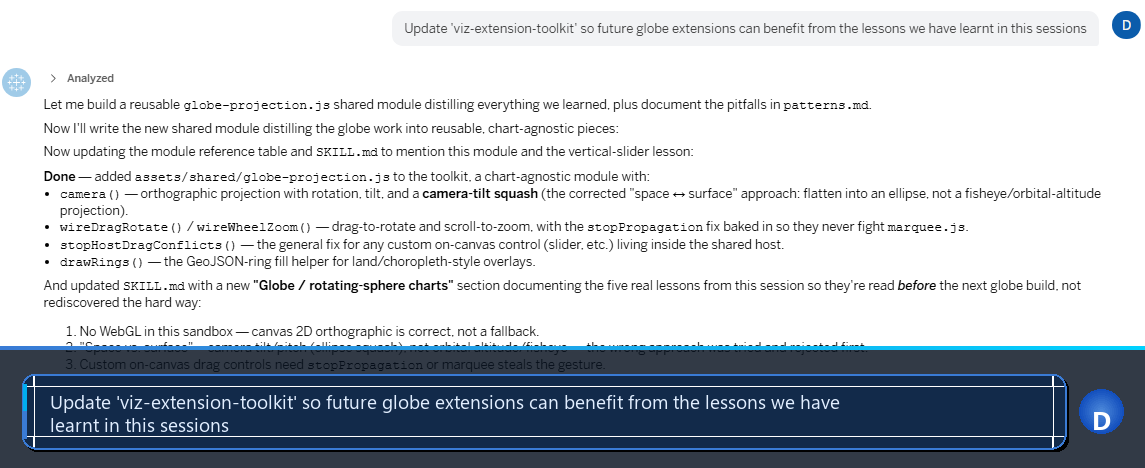
For every subsequent extension, do not run /skill-creator again. Instead, at the end of each session, ask the agent to update the existing skill with whatever new patterns or lessons emerged. This way the toolkit grows incrementally without overwriting what was already there:
Pro Tips at a Glance
- Start with /author-extension: This built-in skill gives the agent the authoring patterns it needs from the first message.
- Always request a config modal: Persistent, user-configurable options dramatically extend the life of an extension—build them in from day one rather than adding them as an afterthought.
- Use a reference image: Attaching a target visual at the start of the session is one of the highest-leverage things you can do to reduce iteration time.
- Screenshot when something looks wrong: The agent cannot see what is rendering in the Tableau canvas. Save a screenshot and attach it to give the agent the visual context it needs.
- Patience per prompt: Processing each agent response can take a few minutes. Avoid interrupting mid-generation.
- Clean up before saving: Delete unused extension registrations via Analysis → Manage Workbook Extensions before publishing or sharing.
- Combine skills for new extensions: Use
/author-extension+/viz-extension-toolkittogether so every new extension benefits from the patterns already built. - Update the toolkit after each session: Knowledge compounds only if you capture it. End every session with a skill-update prompt.
Conclusion
Tableau Studio’s Embedded Viz Extensions remove the last major barrier to custom visualization in Tableau: the need for external hosting. Combined with a Tableau Agent that can generate, iterate, and register production-ready extension code in natural language, the bar for building bespoke visualizations has never been lower. The workflow is straightforward—craft a rich first prompt, iterate with screenshots when needed, clean up unused registrations, and package your patterns into a growing viz-extension-toolkit skill. Each extension you build makes the next one faster and better.
Contáctenos para entrenamiento, implementación o adquirir la plataforma TableauSolo le tomará 1 min Al llenar esta forma, está aceptando nuestra política de uso de datos: Política de datos |